

Upgrade to Batchsync V12
Batchsync V12 is the most important upgrade since our software was first time released 15 years ago, in 2006. We have combined all previous Batchsync and InstantSync versions into a one: the best automated file transfer software available anywhere, for any operating system, and for any price.
Modern and powerful CONSOLE
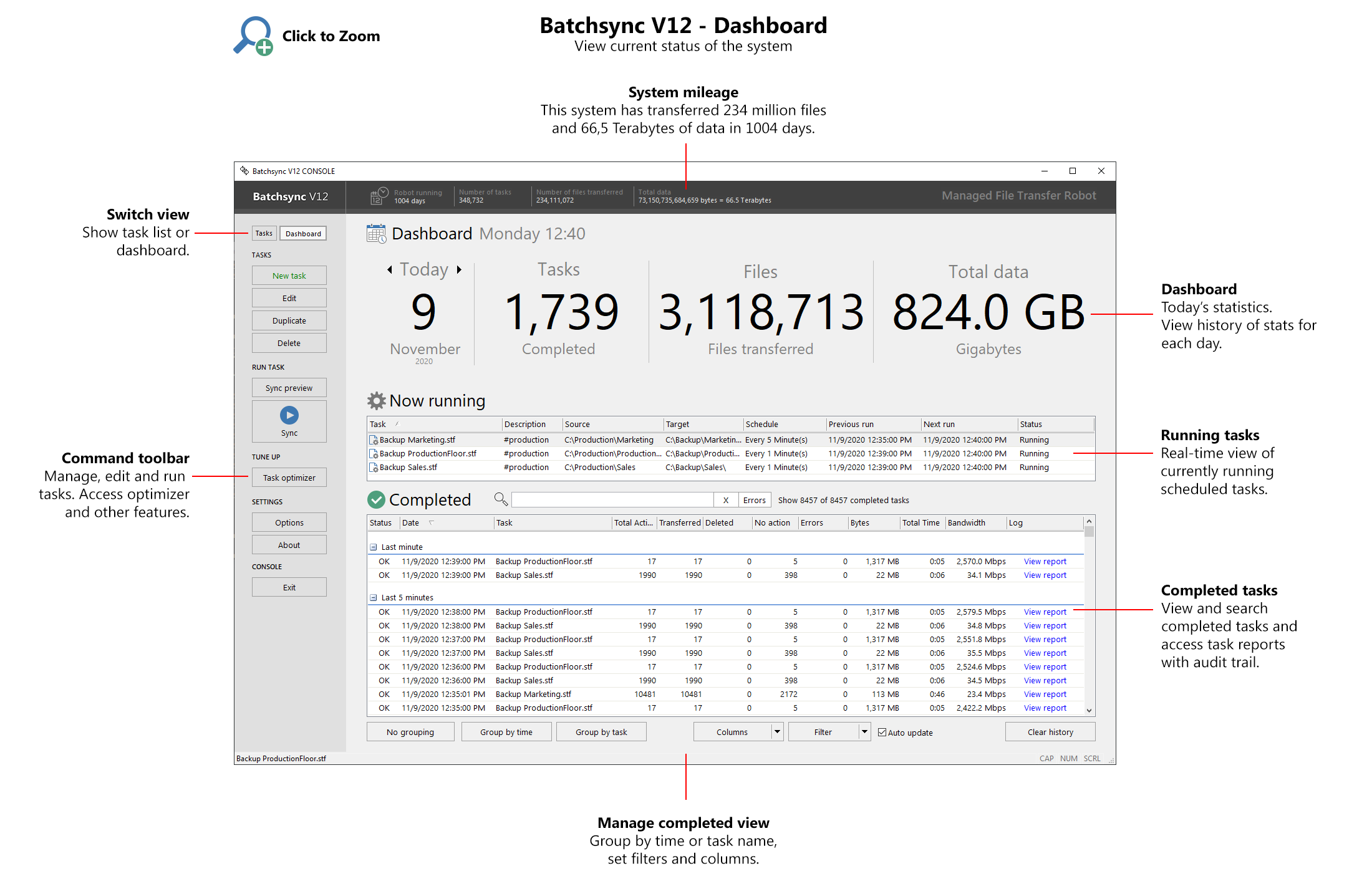
We have fully redesigned Batchsync CONSOLE user interface to make task management simpler and more efficient. Console includes following views:
- Tasks - List of all tasks, with search and filtering. Displays also scheduling info.
- Dashboard - Displays summary of daily file transfers.
- Now Running - Live view of currently running tasks.
- Completed - Recent completed task runs with search and filtering.
Use your existing sync tasks
You can use your existing sync tasks without any changes. When installing V12 on same computer as older version, your existing sync tasks are automatically imported, and are ready for use as-is. When installing V12 on a new computer, you can copy your sync tasks to the new computer by following these instructions.
Local to local syncs
Automate file transfers between local and network share folders, portable drives, USB memory sticks, NAS storage, and linux SMB shares. So now you can set up local backups, syncs, copies and moves on your local network, using the same extremely reliable transfer engine, that has powered Batchsync remote file transfers since day one.
Local to local syncs have all the same filtering, email notification and scheduling features as remote transfer tasks.
Multi-step automation
Create multi-step workflows with new feature called Batch:
- Run set of sync tasks in sequence, and run the whole set on schedule
- Pre-process files before uploading, like create encrypted zip file of source files, and then upload
- Post-process files after downloading, like download set of files, and then unzip received files
- Run command line software, .bat files & powershell scripts before/after sync tasks and automate complete processes
Batches can be run on schedule, and they collect complete audit trail of all actions. Read more about Batches here.
Task scheduling made simple
Integrated scheduling
Task scheduling is now fully integrated with Batchsync, you no longer need to visit Windows Task Scheduler to set up or change scheduling. New scheduler settings are now part of Batchsync task settings, so only single mouse click is needed to schedule your task for repetitive execution.
LIVE monitoring
Monitor currently running tasks in real-time on console. Current scheduling infomation is displayed next to each task, like previous and next run times.
Global email settings
Save default email notification settings in software options. You can then reuse these email settings in sync tasks and batches, so you no longer need to re-enter the settings for each task separately.
Latest security updates
Batchsync V12 fixes all security vulnerabilities in the transfer engine. These security improvements fix errors found in FTP/S and SSH protocols in recent years, and they are extremely important in protecting your data while in transit over internet. With V12 subscription you are 100% protected, now and in the future.
All tasks are now saved 256-bit AES encrypted on disk, so all task settings like user names and passwords are protected.
Windows Server 2022
Batchsync V12 is fully compatible with Windows Server 2022 running on premises, and on Microsoft Azure, Amazon AWS, and other cloud providers.
Full support for Windows Server 2022, 2019, 2016, 2012 R2, 2012, 2008 R2 and 2008, and desktop Windows 11, 10, 8.x and 7.
Technical support
Batchsync technical support is only available to customers with active subscription VERY IMPORTANT!
About subscriptions
With Batchsync V12 subscription you get:
- Two (2) Batchsync licenses:
- One Batchsync V12 license for production server
- One Batchsync V12 license for development / testing server
- Always up-to-date security fixes to keep your data safe
- Benefit from new software features by installing new releases when you want. Please note: We do not force you to upgrade your Batchsync software every time upgrade is available. Instead, you can download and install upgrade when You are ready for it.
- Technical support is always available, be prepared when something unexpected happens with your transfers
Free 30-day trial
Try new Batchsync V12 for free for 30 days.
How to upgrade?
Here you can find step-by-step instructions for upgrading.